최근 저는 로그와 기록들을 Power BI 대시보드로 시각화하는 데 큰 관심을 가지고 있습니다.
MS 제품의 가장 큰 장점은 제조사 자체에서 설계되었기 때문에, 3rd Party 제품보다 더 효율적이고 효과적으로 설계되었다는 점입니다.
처음에는 PowerShell을 사용하려고 했지만, Intune 정책과 Log Analytics를 통해 로그를 쉽게 적재하고 대시보드를 생성할 수 있다는 것을 알게 되었습니다.
그래서 Windows Update 대시보드를 만들기 위한 Requirement는 Azure 구독 및 Log Analytics 작업 영역입니다.
관련 기술자료
Windows Update for Business reports overview - Windows Update for Business reports | Microsoft Learn
Tailor Windows Update for Business reports with Power BI | Windows IT Pro Blog
Configure devices using Microsoft Intune - Windows Update for Business reports | Microsoft Learn
Youtube: https://youtu.be/35NGP67Y7g8
[단계 1] Configuring Microsoft Intune devices for Windows Update for Business reports
아래의 글을 참고하여 진행하였습니다.
Configure devices using Microsoft Intune - Windows Update for Business reports | Microsoft Learn
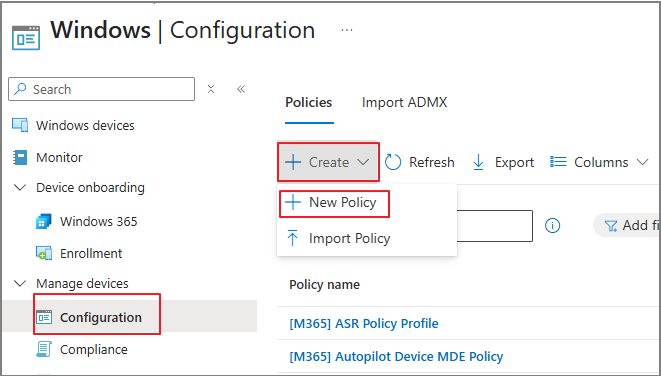
Intune admin center > Devices > Windows

Configuration > Policies > New Policy
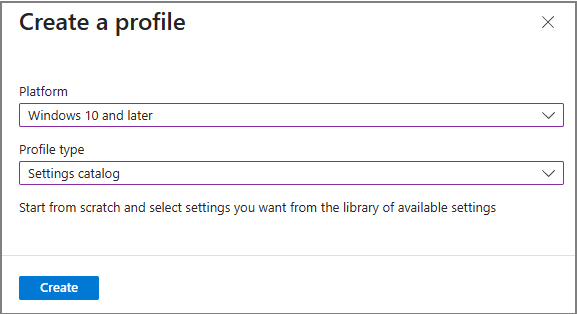
Windows 10 and later > Settings catalog > Create
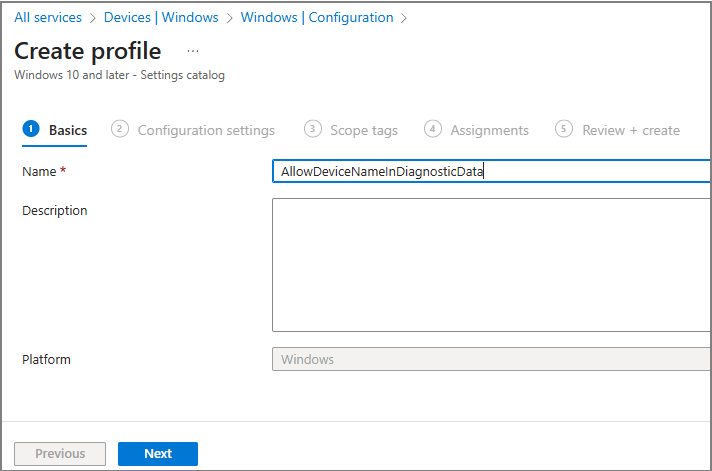
정책 이름 지정
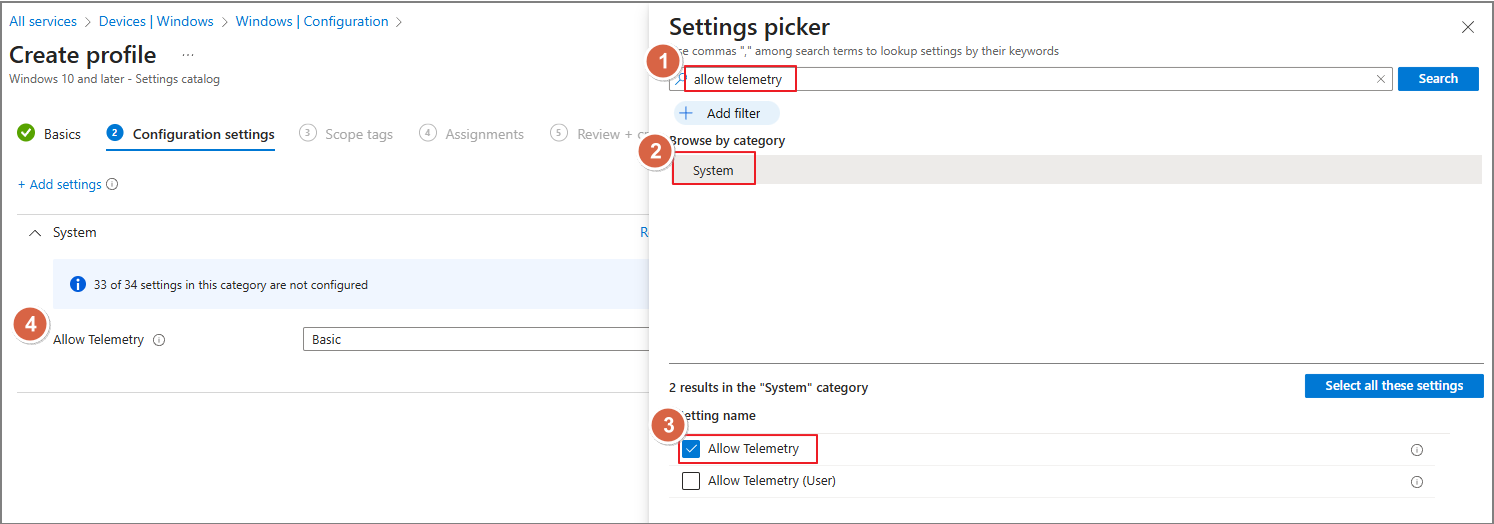
Add settings

Allow telemetry 검색 > System 선택 > Allow Telemetry 체크
아래와 같이 정책이 추가되는 것을 확인합니다.
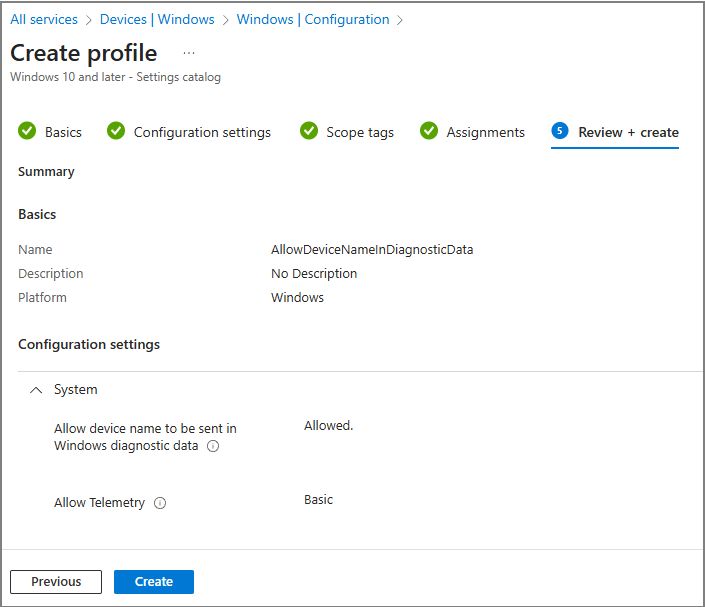
같은 방식으로 다음 항목들을 검색 및 추가 합니다.
| Setting: Configure Telemetry Opt In Settings Ux Value: Disabled Setting: Configure Telemetry Opt In Change Notification Value: Disabled Setting: Allow device name to be sent in Windows diagnostic data Value: Allowed |

정책을 적용할 사용자나 디바이스를 할당합니다.
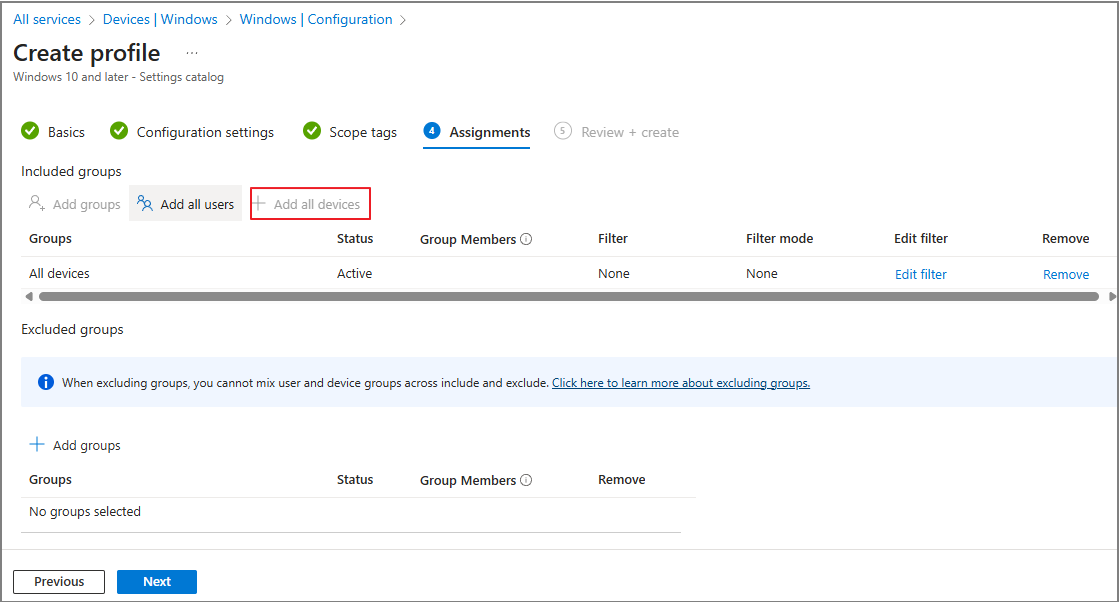
정책을 생성합니다.
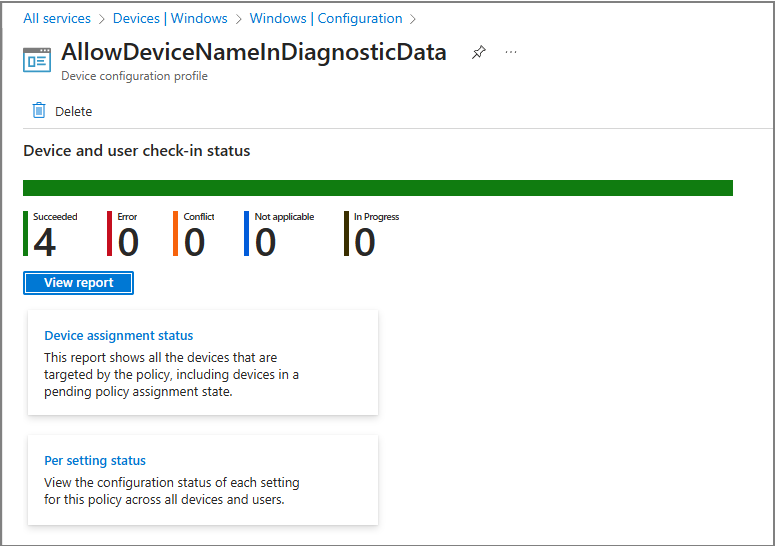
정책이 반영되는지 모니터링합니다.
기업 환경에서는 종종 별도의 정책 없이도 데이터가 수집되는 경우를 쉽게 확인할 수 있습니다.
Intune 데이터 수집 정책이 활성화된 경우, 데이터가 수집된 것으로 추정됩니다. 하지만, 제 테스트 테넌트에서는 수집이 이루어지지 않았으며, 공식 자료자료 대로 진행하였습니다.

[단계 2] Enable Windows Update for Business reports
아래의 글을 참고하여 진행하였습니다.
Enable Windows Update for Business reports - Windows Update for Business reports | Microsoft Learn
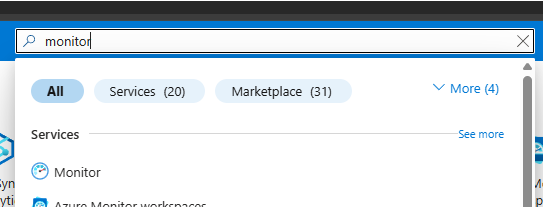
Azure Portal > Monitor
Workbooks > Windows Update for Business reports

Get started

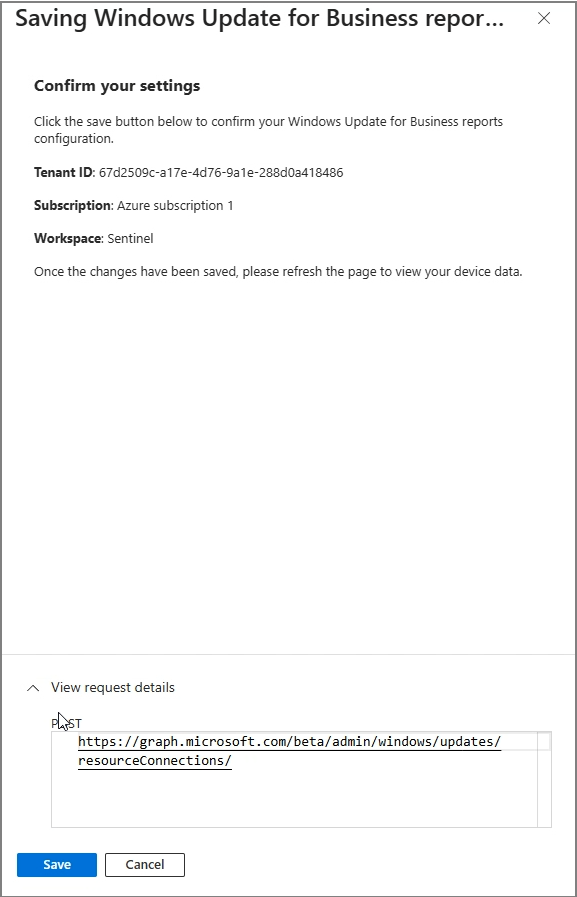
해당 정보는 Graph를 통해서 가져온다는 것을 알 수 있습니다. Save
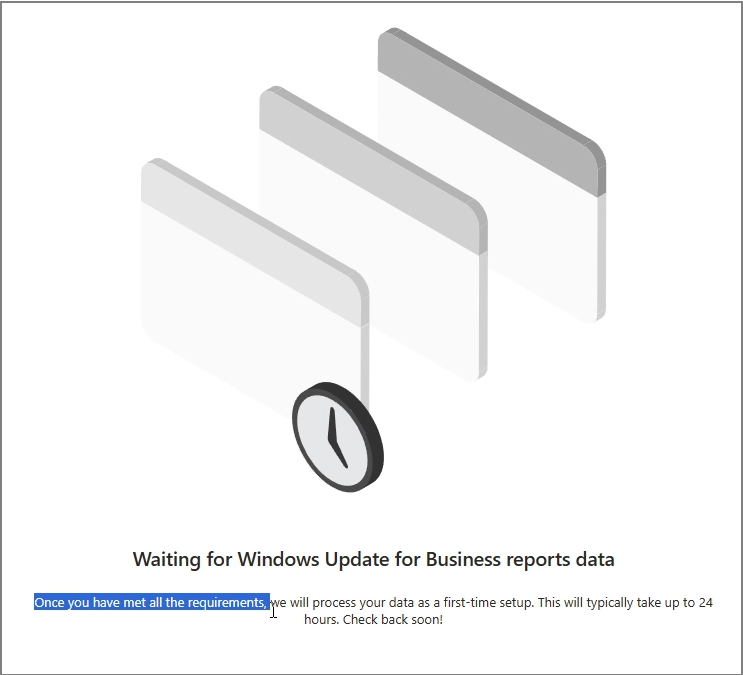
24시간 소요될 수 있다고 언급되어 있지만, 저는 48시간 이상 소요되었습니다.
정책이 정상적으로 반영되면, 아래와 같이 표시됩니다.

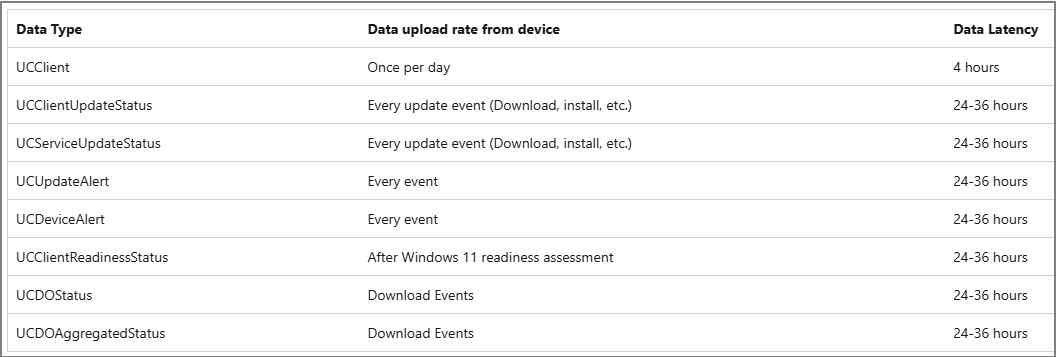
참고로 Log Analytics 상에서는 UC로 시작되는 테이블로 저장됩니다.

정책 수집 주기는 다음 기술자료에서 확인할 수 있습니다.
[단계 3] Tailor Windows Update for Business reports with Power BI
아래의 글을 참고하여 진행하였습니다.
Tailor Windows Update for Business reports with Power BI | Windows IT Pro Blog
위 페이지에서 Power BI 템플릿을 다운로드 합니다.

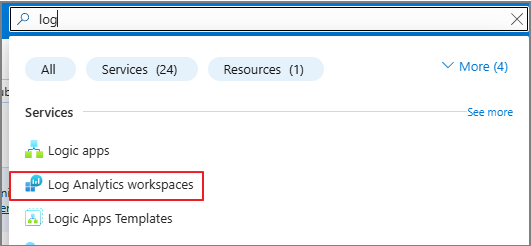
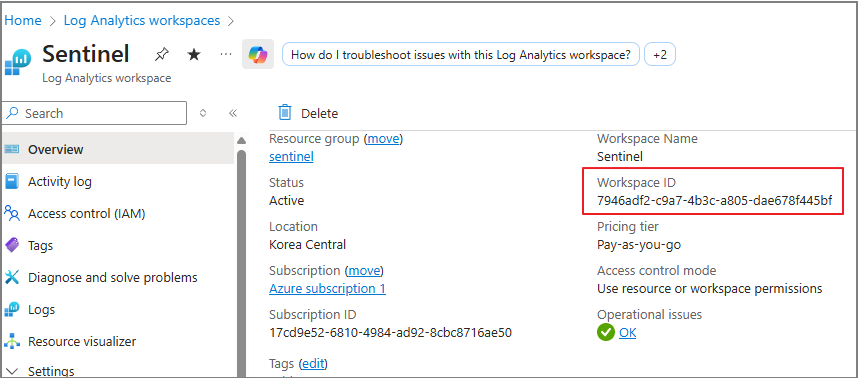
Log Analytics workspaces로 이동
Workspace ID를 복사합니다.
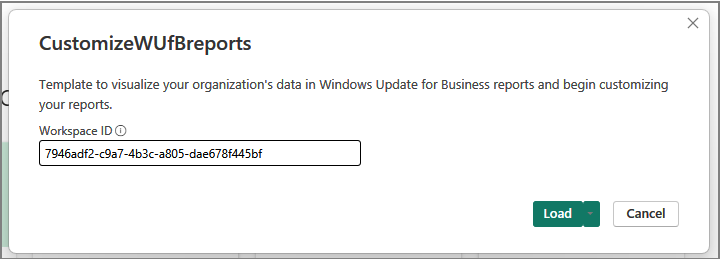
템플릿을 실행 > Workspace ID 입력 > Load
Organizational account > Connect

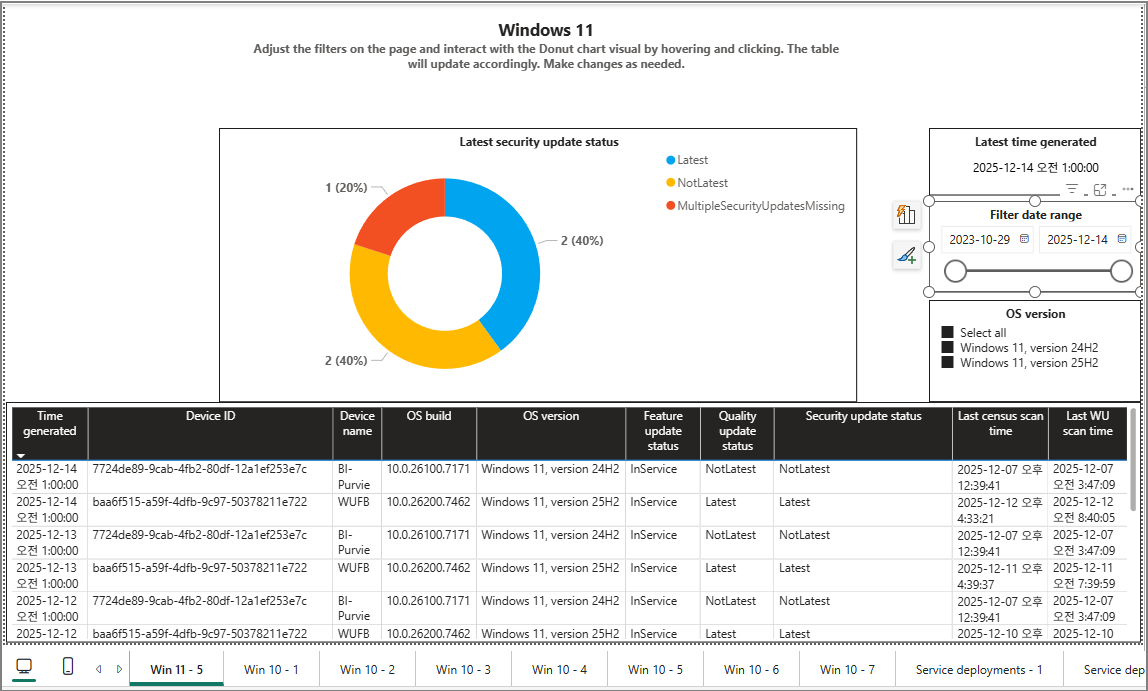
Windows Update 대시보드를 생성할 수 있습니다.

'Microsoft 365' 카테고리의 다른 글
| MDE와 Endpoint DLP를 이해하기 위한 디바이스 온보딩 개념 정리 (0) | 2026.05.03 |
|---|---|
| Microsoft 365 로그 관리 (5). Sentinel 로그를 Excel에서 분석하기 (0) | 2025.12.25 |
| Microsoft 365 로그 관리 (3): Azure Data Lake Storage Gen2 연결 (0) | 2025.09.14 |
| Microsoft 365 로그 관리 (2): Microsoft Defender for Identity (MDI) 로그 관리와 Power BI 연결 (2) | 2025.08.24 |
| Microsoft 365 로그 관리 (1): Sentinel로 시작하기 (2) | 2025.08.10 |