GSA. (1) Microsoft Traffic & Tenant Restriction
이번 포스팅에서는 Global Secure Access (GSA) 중에서 Microsoft Traffic에 대해서 다루겠습니다.
이전에 Tenant Restriction 에 대해서 작성한 적이 있습니다.
2024.07.07 - [Microsoft 365] - Microsoft Entra ID. Set up tenant restrictions v2 by GSA
그 때 작성했던 글과 영상 수정이 필요했고, 최근 추가된 기능들에 대해서 다룰 필요가 있어서, 2026년 버전으로 새로 작성하게 되었습니다.
GSA는 크게 Microsoft 365 Traffic, Internet Access, Private Access 3가지 Profile 단위로 기능이 구분됩니다.
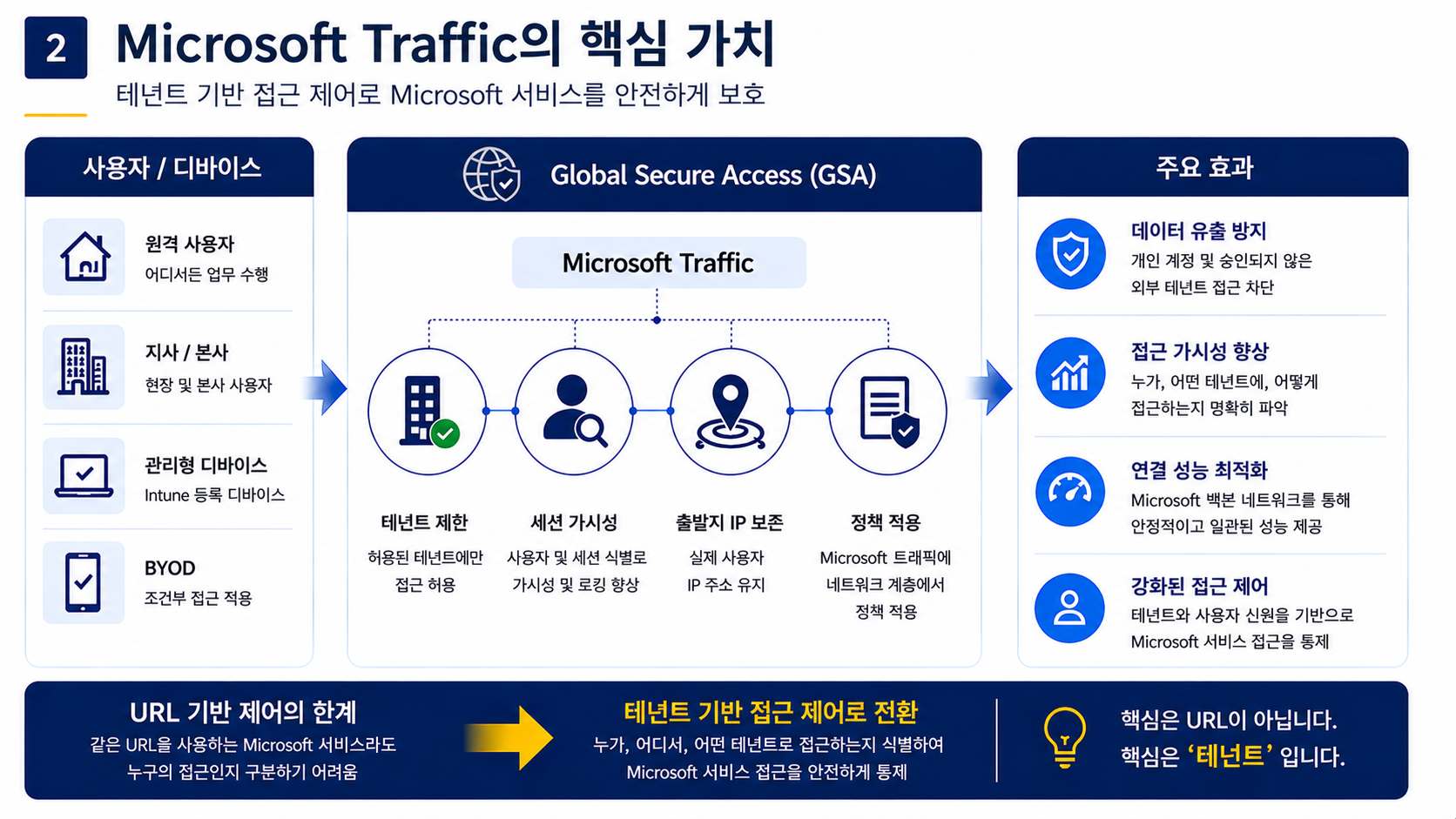
그중에서 Microsoft 365 Traffic은 MS 서비스 트래픽에 대해서 관리하고, 테넌트 제한(Tenant Restriction) 기능을 통해서 개인 계정을 통한 데이터 유출을 방지하는 것이 핵심입니다.

Microsoft 365 Traffic만 사용하더라도 개인 계정 차단 및 타사 테넌트에 접근하는 경로를 네트워크 단에서 제어할 수 있습니다.
아래의 자료들을 참고하여 진행하였습니다.
Global Secure Access and Universal Tenant Restrictions - Global Secure Access | Microsoft Learn
Configure Tenant Restrictions - Microsoft Entra ID - Microsoft Entra External ID | Microsoft Learn
Step 1. GSA 활성화
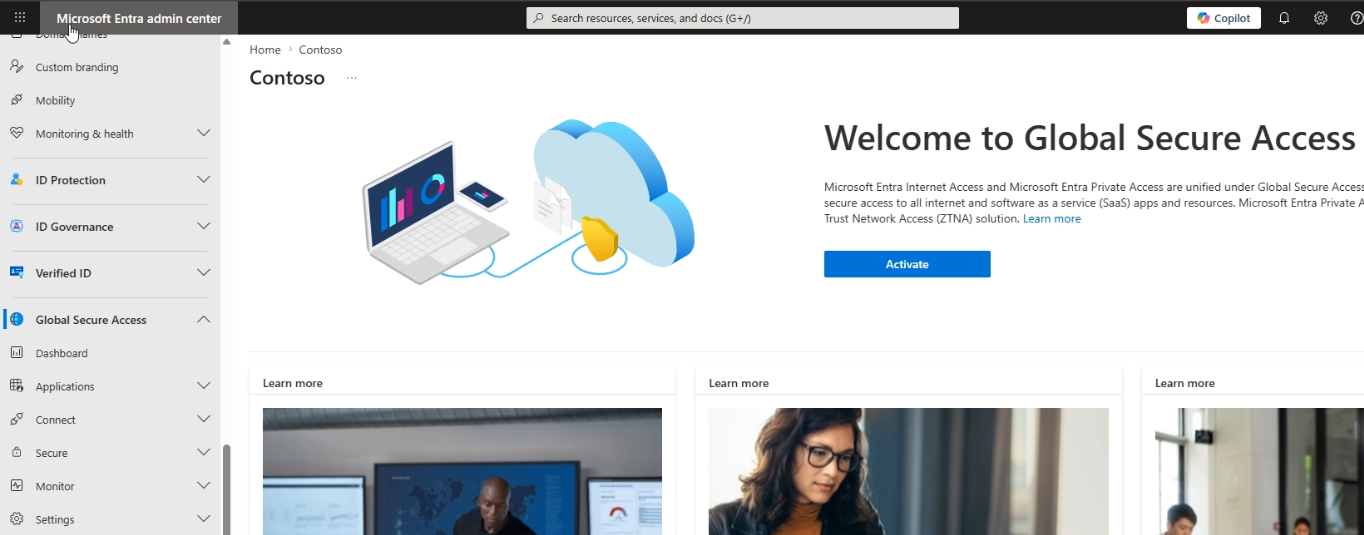
Entra -> Globa Secure Access -> Activate
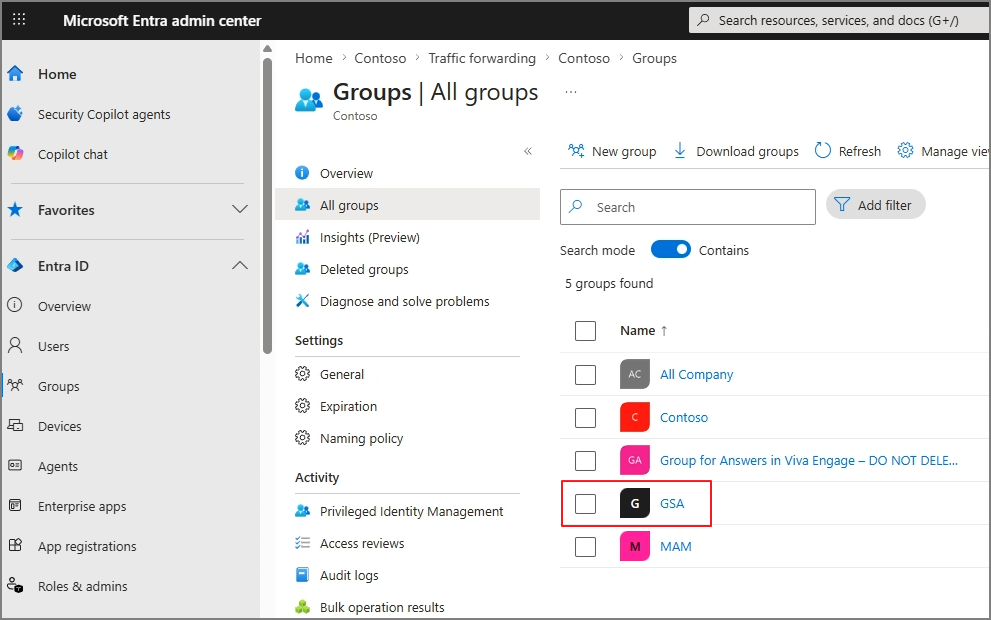
정책을 할당할 그룹을 생성
Global > Secure Access Connect > Traffic forwarding > Microsoft traffic profile > Enabled
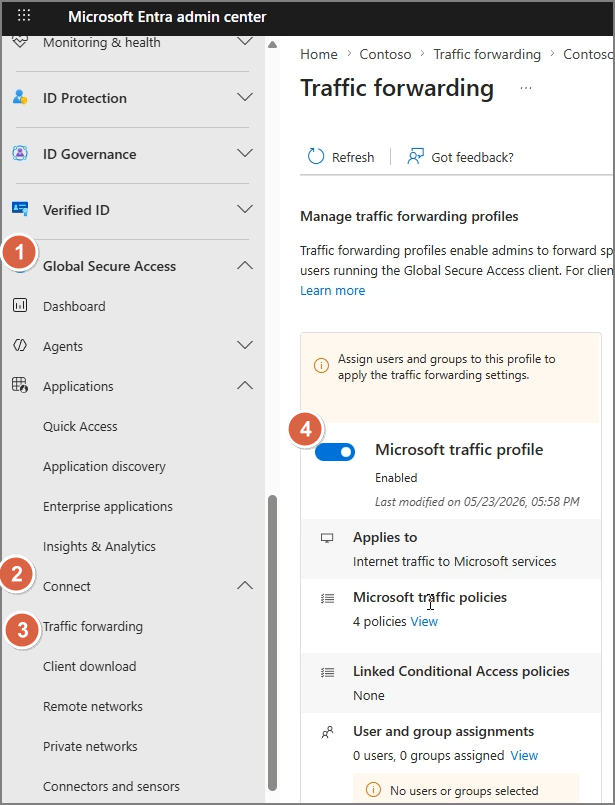
User and group assignments > View
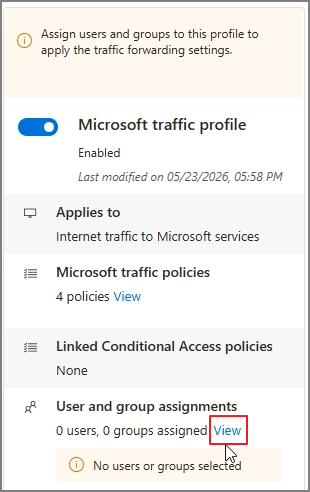
Assigned > 항목 선택

Add user/group
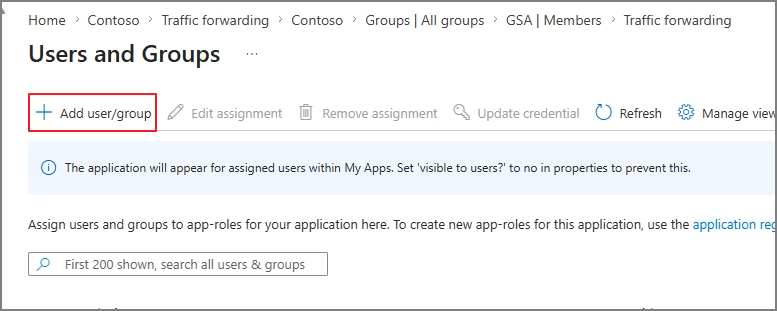
대상 그룹 할당

2. Tenant Restriction 활성화
Entra Admin Center > Cross-tenant access settings > cross-tenant access settings > Default settings
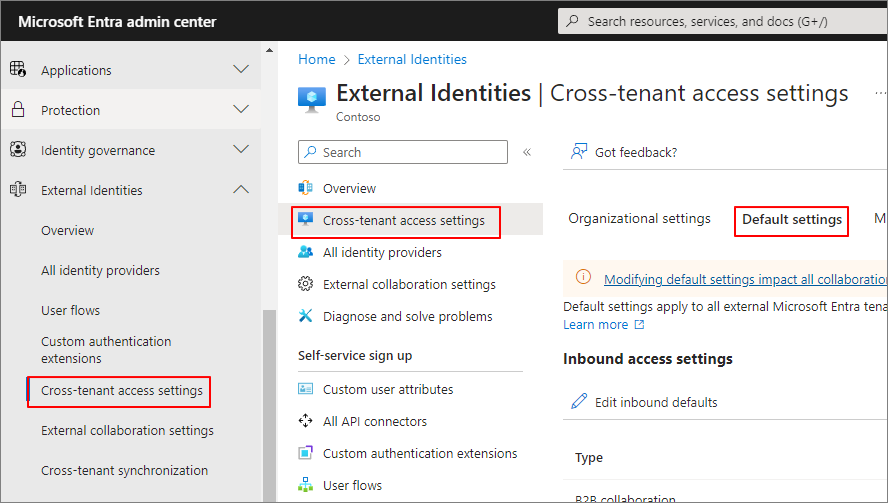
Edit tenant restrictions defaults
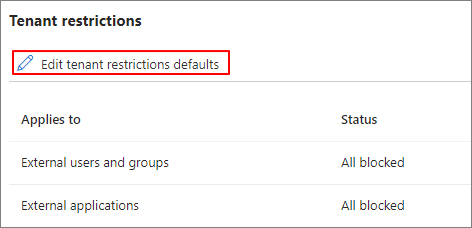
Create Policy
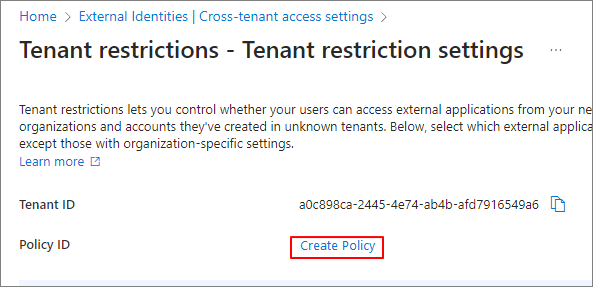
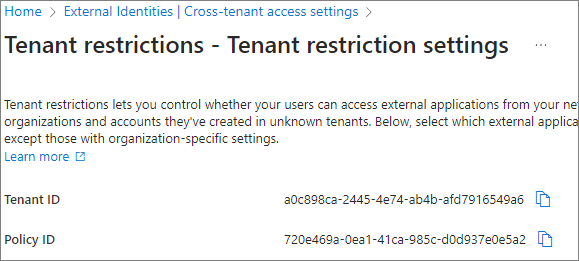
아래와 같이 Policy ID가 생성됩니다.
Block 설정을 진행합니다.

Global Secure Access > Settings > Session management > Univeral Tenant Restriction > 활성화 진행
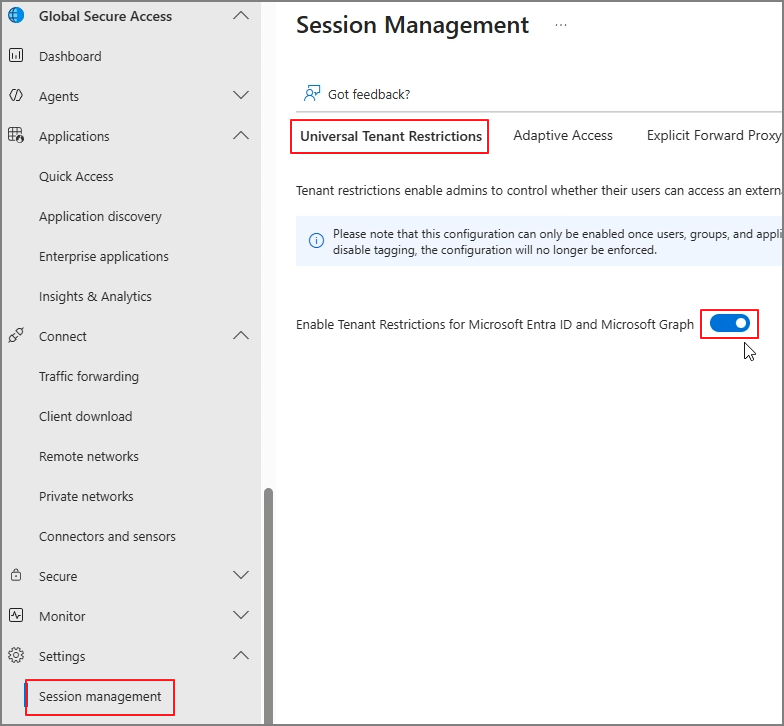
3. Client 설치 및 정책 적용 확인
Connect > Client download > Download Client

설치 진행

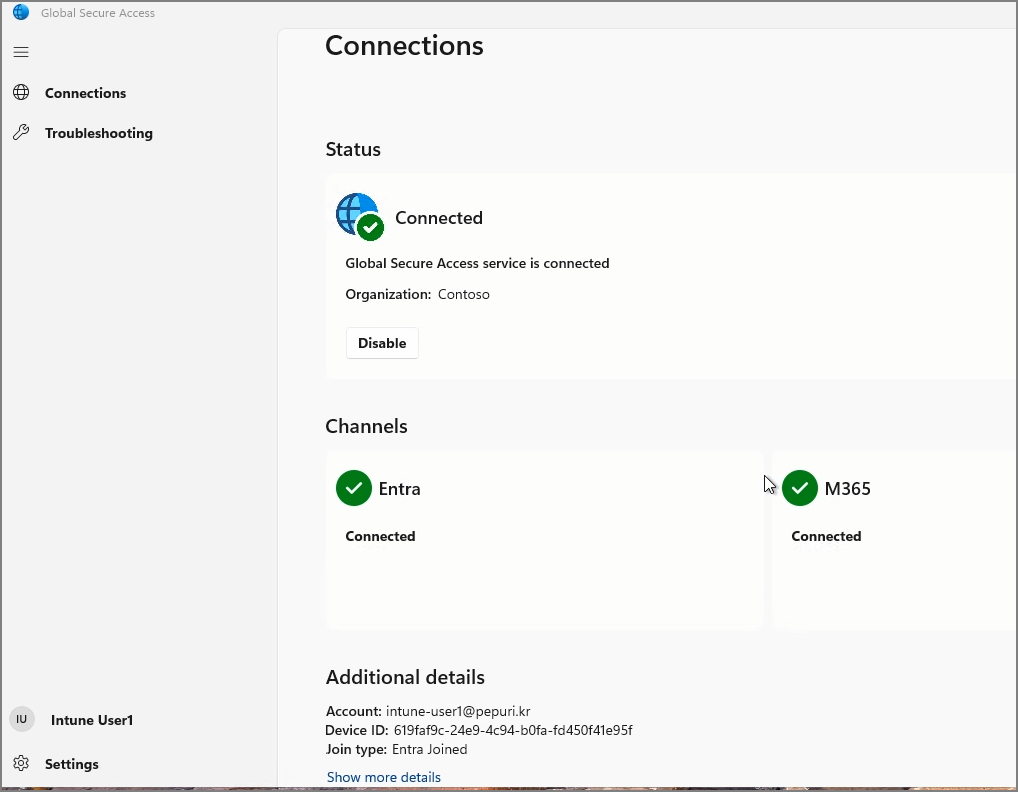
GSA 설치 상태 확인
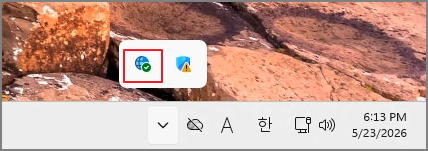
정상적으로 연결됨 확인
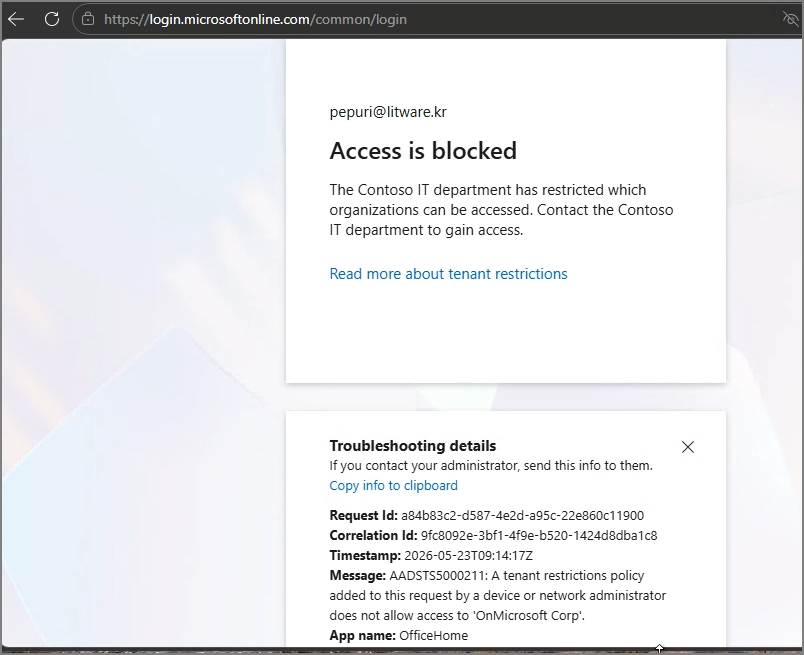
다른 테넌트 접속시 Block됨 확인
4. 다른 테넌트 허용 설정
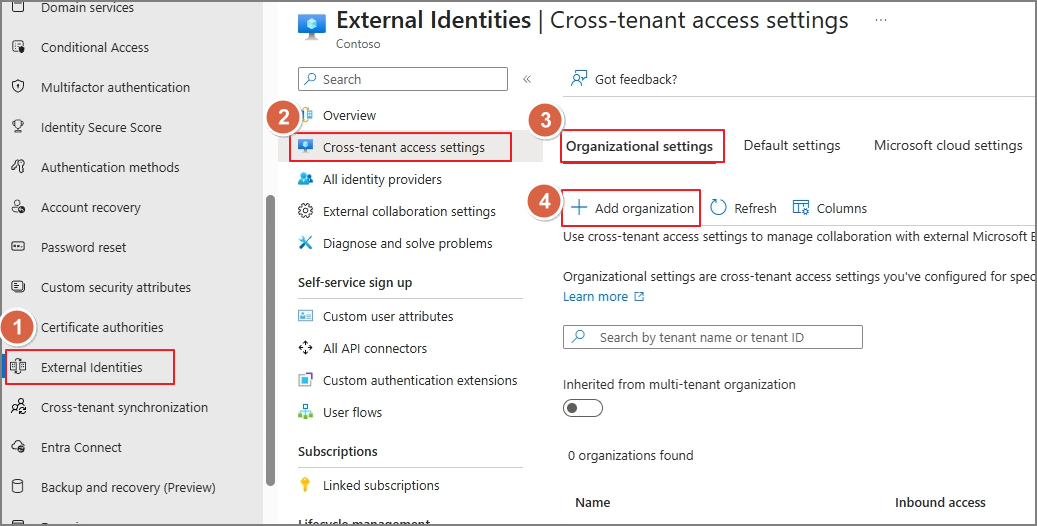
특정 테넌트 허용 설정이 필요할 경우에는 External Identities > Cross-tenant access settings > Organizational settins > Add organization
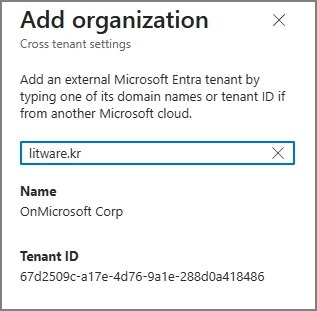
Domain이나 Tenant ID를 검색하여 추가
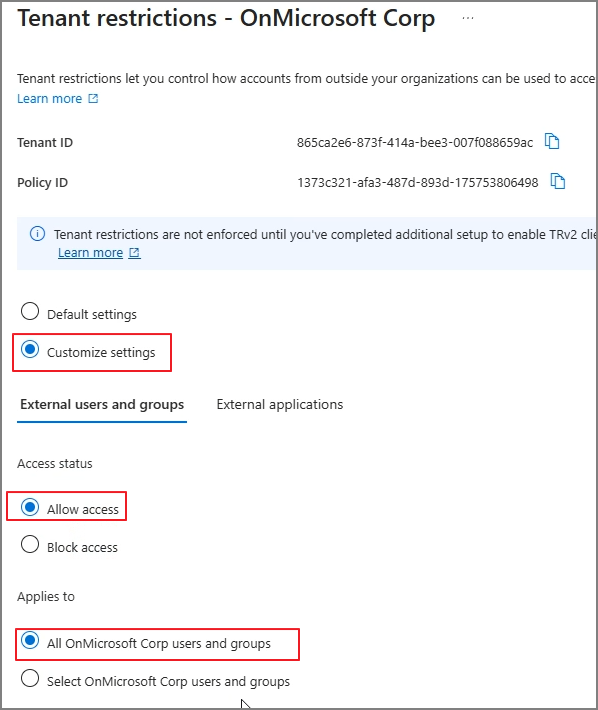
Tenant restriction 항목 선택
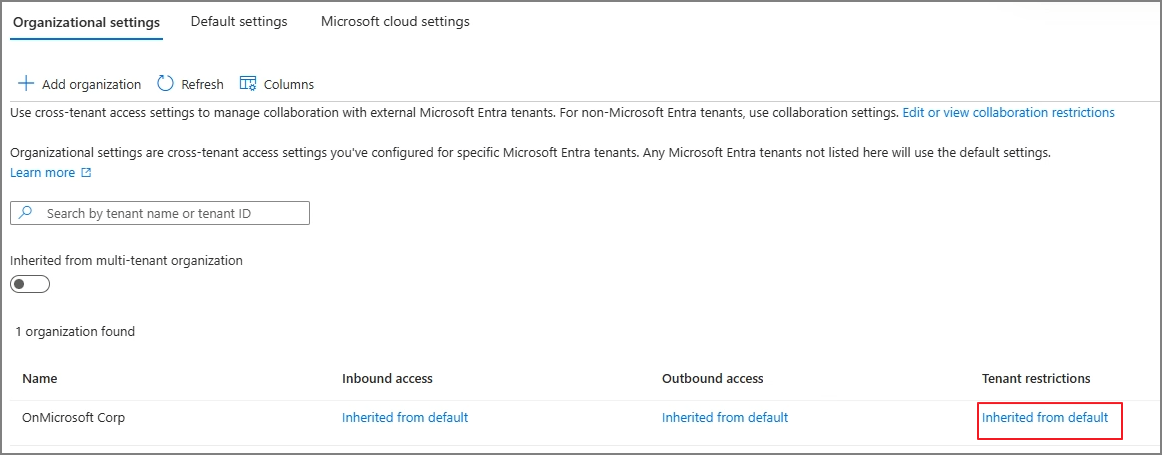
허용 설정 진행
테넌트 제한 이외에도 Client 배포 및 Internet Access, Private Access의 다양한 기능들을 기회가 되면 다뤄보도록 하겠습니다.