Windows Server 2019. RDS 에서 NPS Extension 서버를 이용한 Azure MFA 로그인 설정
지난 RDS 구성에 이어서, 아래의 기술자료를 참고하여 Onpremise 의 RD Server 를 Azure MFA 인증 설정을 다뤄보겠습니다.
Integrate your Remote Desktop Gateway infrastructure using the Network Policy Server (NPS) extension and Azure AD
https://docs.microsoft.com/en-us/azure/active-directory/authentication/howto-mfa-nps-extension-rdg
2019/09/25 - [Windows Server] - Windows Server 2019. Remote Desktop Service(RDS) 구성(1) RemoteApp
2019/09/27 - [Windows Server] - Windows Server 2019. Remote Desktop Service(RDS) 구성(2) VDI
Requirement
|
RDS(원격 데스크톱 서비스) 인프라 Azure MFA 라이선스 Windows Server 소프트웨어 NPS(네트워크 정책 및 액세스 서비스) 역할 온-프레미스 Active Directory와 동기화되는 Azure Active Directory Azure Active Directory GUID ID |
사전에 AAD Sync가 진행되어야 합니다.
2019/08/25 - [Windows Server] - Windows Server 2019. Active Directory (AD) Domain Controller 구성
2019/06/19 - [Office 365] - Office 365. Azure AD Sync (ver.19.06.19)

[NPS Extension Installation]
NPS Server 를 Domain 에 Join
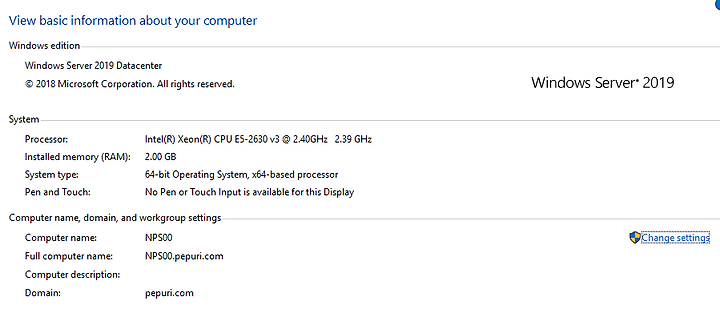
Dashboard - Add Roles and Features - Network Policy and Access Services -Check

Install

아래의 링크에서 NPS Extension for Azure MFA 를 다운로드 및 설치
NPS Extension for Azure MFA
https://www.microsoft.com/en-us/download/details.aspx?id=54688

Powershell - 우클릭 - 관리자 권한으로 실행
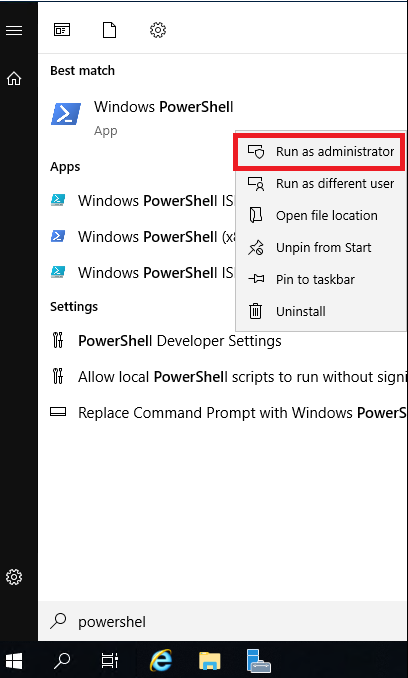
다음과 같이 입력
|
cd ‘c:\Program Files\Microsoft\AzureMfa\Config’ .\AzureMfaNpsExtnConfigSetup.ps1 |

관리자 계정 로그인
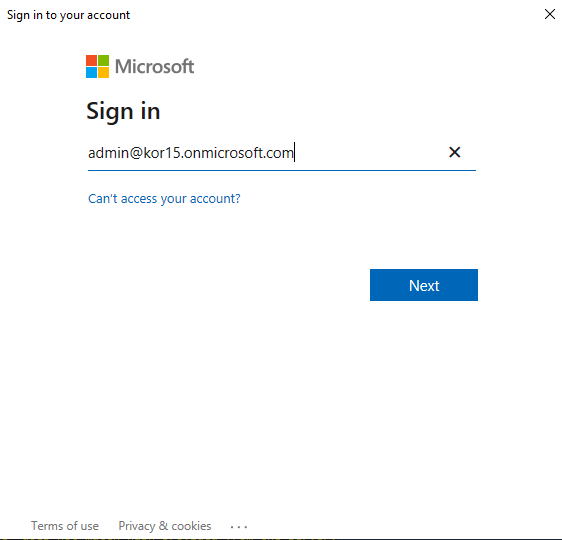
Portal.azure.com - Azure Active Directory - Properties - Directory ID - Copy

붙여넣기 (paste) - Enter

[RD Gateway Configuration]

RD Gateway Server 에서 Remote Desktop Gateway Manager 실행

Gateway(Local) - 우클릭 - Properties

RD CAP Store - Central server running NPS - NPS Server 지정 - Add

Secret code 생성 - OK
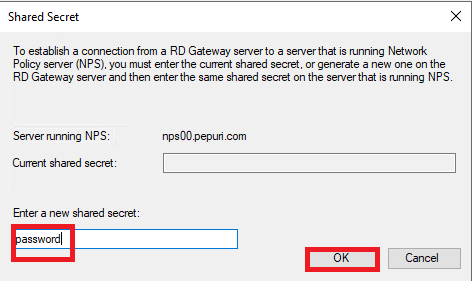
OK

RD Gateway 에서 Network policy server 실행

Remote RADIUS Server - TS GATEWAY SERVER GROUP - 우클릭 - Properties

Edit

아래와 같이 변경
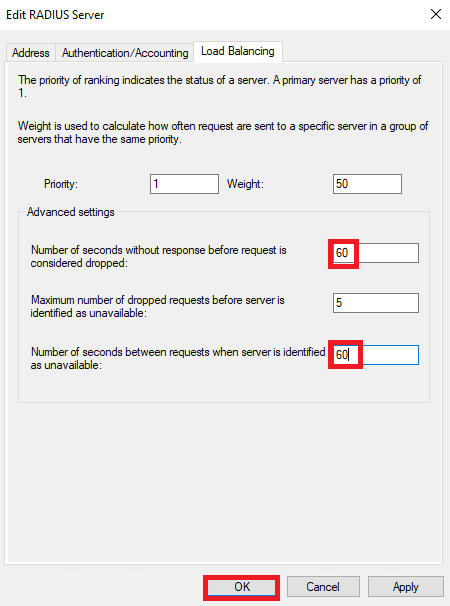
Policies - Connection Request Policies - TS GATEWAY AUTHORIZATION POLICY - 우클릭 - Properties

Authentication - 아래와 같이 설정되어 있는지 확인

[NPS Extension Server(nps00.pepuri.com) Configuration]
NPS00 에서 작업 진행

Network Policy Server - NPS(Local) - 우클릭 - Register server in Active Directory

OK

OK

RADIUS Clients - New

이름 지정 및 RD Gateway 정보 입력 - OK

Policies - Network Policies - Connections to other access servers - 우클릭 - Duplicate Policy

Copy of Connections to other access servers - 우클릭 - Properties
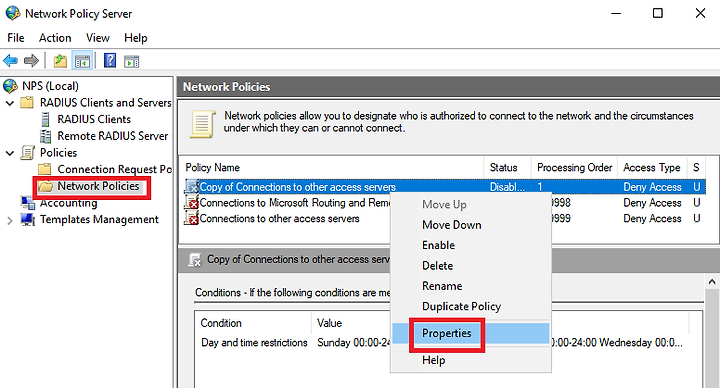
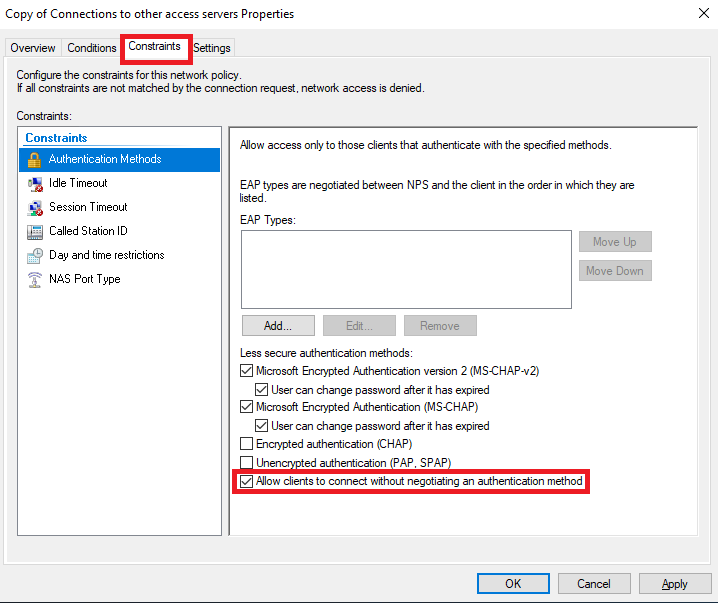
아래와 같이 설정합니다.

Constraints TAB - Allow clients to connect without negotiating an authentication method
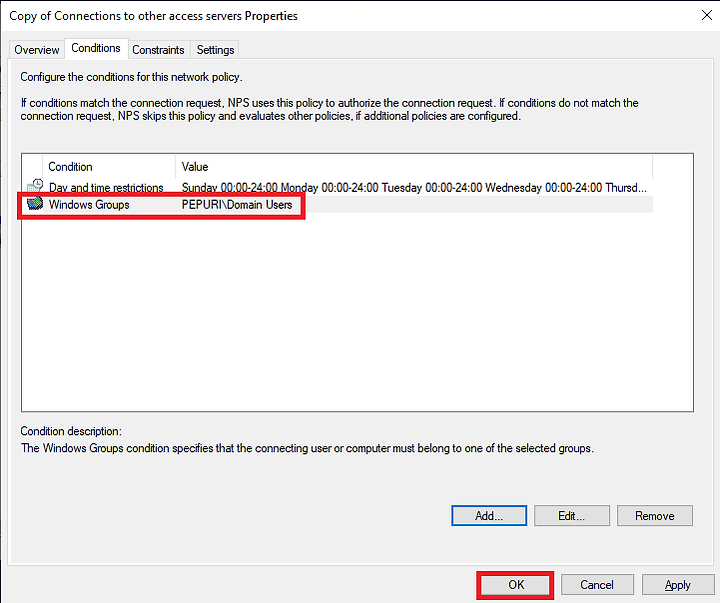
Conditions TAB 에서 조건 지정 - OK
No

테스트 할 사용자에 MFA 관련 라이선스 할당

제 경우에는 potal.office.com 에서 MFA 설정을 진행하였습니다.

Enable
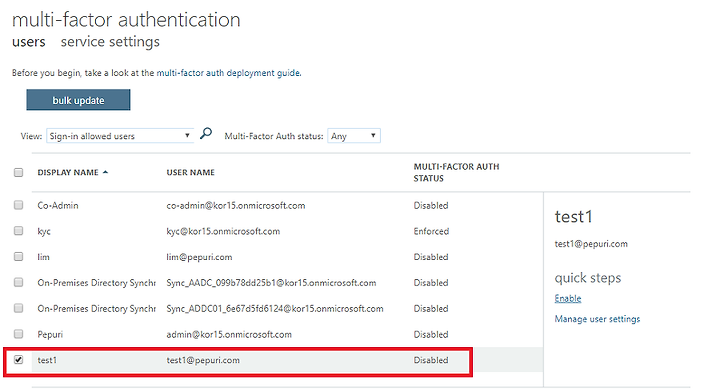
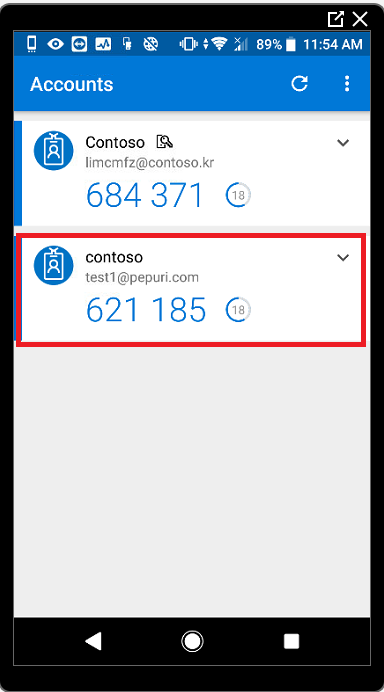
계정으로 로그인 후 2단계 인증 설정 진행
(Mobile app 으로 진행하였습니다.)

Mobile 에서 Authenticator 를 사전에 설치합니다.

Add account

Work or school account

설정진행

RemoteApp 을 실행

자격증명 입력

Windows Server 2019 에서 진행하면 아래의 화면에서 더 이상 진행되지 않는 것을 확인할 수 있습니다.

NPS 관련하여 아래의 자료가 확인되었습니다.
Windows Server 2019 - Default NPS Firewall rules (Port 1812 UDP) Not working
https://social.technet.microsoft.com/Forums/en-US/cf047df5-ed4a-46b9-9564-c9db5a9bc8dc/windows-server-2019-default-nps-firewall-rules-port-1812-udp-not-working?forum=ws2019
관련 포트가 열리지 않은 것을 알 수 있습니다.

NPS Extension Server 에서 명령프롬프트창에서 아래의 명령어를 실행
Sc sidetype IAS unrestricted -> Reboot

아래와 같이 Mobile 에서 2단계 인증이 진행되는 것이 확인됩니다.
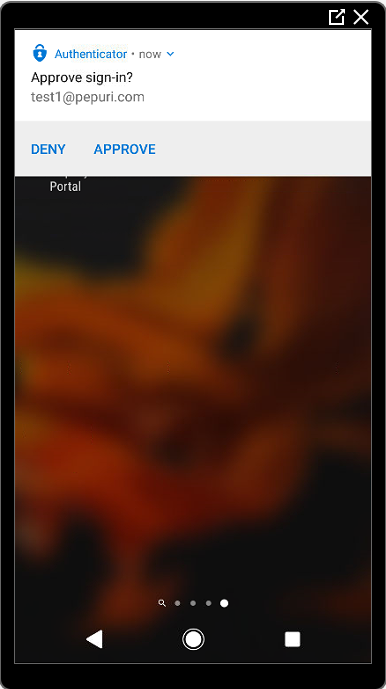
정상적으로 실행됨 확인
